Tracking phone calls and form submissions helps you track Google Ads performance. It shows which adverts generate real leads, not just clicks. You can track contact forms, calls from ads and calls made through your website.
Use a thank-you page or Google Tag Manager (GTM) to track form submissions. For phone calls, set up call assets, Google forwarding numbers or click-to-call tracking. These conversion actions help you identify which campaigns, keywords and ads bring in enquiries.
In this guide, you’ll learn how to set up Google Ads conversion tracking. You’ll also learn how to test and improve your tracking to track leads more accurately.
How to Track Form Submissions from Google Ads
Form submission tracking shows how many people complete an enquiry form after clicking your Google Ads. It helps you track website leads and campaign performance.
For example, a potential customer searches for an accountant and clicks your advert. They visit your website and submit the contact form. Google Ads records this successful form submission as a conversion when tracking is set up correctly.
There are two common ways to track website form submissions in Google Ads.
Option A: Track Form Submissions Using a Thank-You Page
This is one of the simplest ways to track form submissions. It works best when your website redirects users to a dedicated thank-you page after they successfully submit a contact form. You can use this confirmation page to record a Google Ads conversion.
Step 1: Create a dedicated thank-you page
First, create a separate thank-you page on your website.
For example: https://www.example.co.uk/thank-you
This page should appear only after a visitor successfully submits a contact, enquiry or quote request form.
Add a clear confirmation message, such as: Thank you for your enquiry. We have received your details and will contact you shortly.
If your website has multiple lead forms, create a separate thank-you page for each one. This helps you identify which form generates each Google Ads conversion.
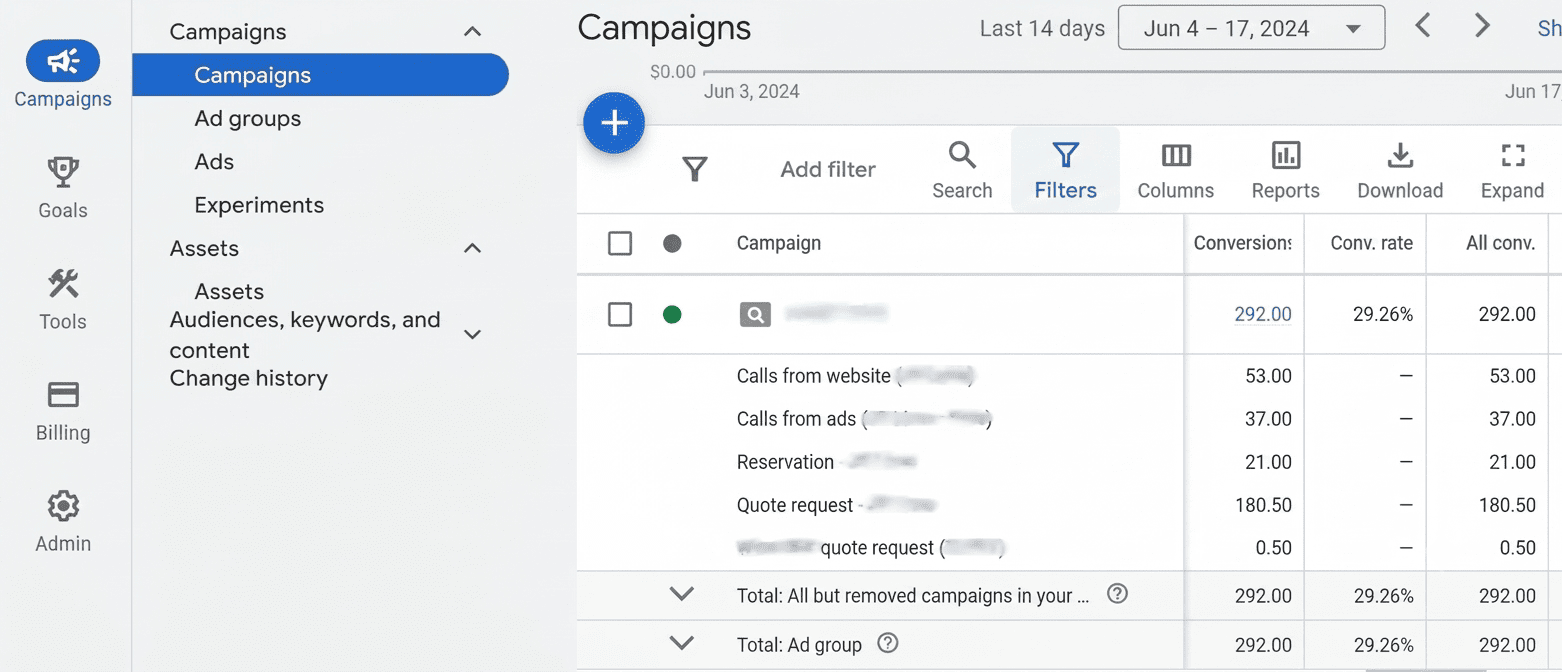
Step 2: Create a website conversion action in Google Ads
Sign in to your Google Ads account.
Follow these steps:
- Open Goals from the navigation menu.
- Select Conversions.
- Open Summary.
- Click Create conversion action.
- Select Website as the conversion source.
- Enter your website domain.
- Choose the option to track a page load or URL-based conversion.
- Enter your thank-you page URL.
- Select the relevant lead form submission conversion category.
- Save your conversion action.
Give your conversion a clear name, such as: Website Contact Form Submission
This will help you identify form conversions in your Google Ads reports.
Note: Google Ads may change its menu names and setup options. Follow the website conversion tracking steps shown in your account.
Step 3: Install the Google tag on your website
Google Ads needs a Google tag to track website conversions. You can install it directly on your website or manage it through Google Tag Manager. If you already have the correct Google tag installed, you do not need to add another copy.
If you are using Google Tag Manager:
- Open your GTM account.
- Select the correct website container.
- Check that the Google tag is installed.
- Create a Google Ads Conversion Tracking tag.
- Enter the conversion ID and conversion label provided by Google Ads.
- Create a page-view trigger for your thank-you page.
- Connect the trigger to your conversion tag.
The tag should fire only when the visitor reaches the confirmation page after a successful form submission. Google's guide to using Google Tag Manager
Step 4: Test your form submission tracking
Before publishing the tracking setup, test it.
- Open your website in a new browser window.
- Visit the page containing your contact form.
- Enter test information.
- Submit the form.
- Check whether the website redirects to the thank-you page.
- Open Google Tag Manager Preview mode.
- Check whether the Google Ads conversion tag fires on the confirmation page.
You can also use Google Tag Assistant to check your Google tag implementation. Make sure the conversion fires once per successful form submission.
Important: Keep the thank-you page hidden from normal website navigation. This helps ensure it records genuine form submissions. Direct visits or page refreshes may trigger duplicate or false Google Ads conversions.
Option B: Track Form Submissions Using Google Tag Manager Form Submission Trigger
This method is ideal for websites that show a form success message without opening a separate thank-you page.
For example, a visitor submits your contact form and sees a confirmation message on the same page. In this case, Google Tag Manager (GTM) can track the successful form submission. It uses a form trigger or custom event to record the Google Ads conversion.
Step 1: Open Google Tag Manager
Visit: https://tagmanager.google.com/
Sign in and select the container connected to your website.
Step 2: Enable the built-in form variables
From the GTM workspace:
- Open Variables.
- Find the Built-In Variables section.
- Click Configure.
- Enable the relevant form variables.
These can include:
- Form Element.
- Form ID.
- Form Classes.
- Form Target.
- Form URL.
- Form Text.
These variables help you identify which website form a visitor has interacted with.
Step 3: Create a Form Submission Trigger
In Google Tag Manager (GTM), go to Triggers and click New.
Name your trigger: Contact Form Submission
Select Form Submission as the trigger type. Then set conditions to track the correct contact or enquiry form.
You can use conditions such as:
- Form ID equals contact-form.
- Form Classes contains enquiry-form.
- Page URL contains /contact/.
Choose conditions that match your website's form settings. Enable form validation where needed. This helps prevent duplicate or incorrect conversion tracking.
Important: GTM's built-in Form Submission trigger may not work with every website form. This is common with AJAX forms and forms that use custom JavaScript.
For these forms, ask your developer to send a successful submission event to the data layer. For example: form_submission_success
Then, create a Custom Event trigger in GTM. Set the event name to form_submission_success.
This method tracks confirmed form submissions. It helps ensure Google Ads records genuine leads, rather than incomplete form attempts.
Step 4: Create a Google Ads conversion tracking tag
Create the tag that sends form conversion information to Google Ads.
- Open Tags in Google Tag Manager.
- Click New.
- Select Google Ads Conversion Tracking.
- Enter your Google Ads Conversion ID.
- Enter your Conversion Label.
- Save the tag configuration.
You can find the conversion ID and conversion label in the relevant conversion action's tag setup instructions in Google Ads.
Step 5: Connect the Form Submission Trigger
Open your Google Ads conversion tag in Google Tag Manager (GTM).
Under Triggering, select: Contact Form Submission
This links the successful form submission event to your Google Ads conversion tag. When a visitor submits the form successfully, GTM fires the tag. Google Ads then records the form submission as a conversion.
Step 6: Preview and Test Form Tracking
Test your conversion tracking before publishing the GTM container.
- Click Preview in Google Tag Manager.
- Enter your website URL and connect Tag Assistant.
- Open the page with your contact or enquiry form.
- Submit a test form with valid details.
- Check the event sequence in Tag Assistant.
- Confirm that the Google Ads conversion tag fires after successful submission.
- Submit the form with missing or invalid details. Check that the tag does not fire.
If the tag works correctly, return to GTM and click Submit to publish your changes.
Your Google Ads form submission tracking is now set up. You can use conversion data to measure enquiries and assess which campaigns generate leads.
How to Track Phone Calls from Google Ads
Phone calls generate valuable leads for service-based businesses. These include accountants, solicitors, plumbers, electricians and estate agents.
Customers can contact your business in different ways. Some call directly from a Google Search ad. Others visit your website and dial the displayed phone number. Mobile users may tap a click-to-call link.
Google Ads offers different call conversion tracking methods. These help you track phone enquiries from ads and your website.
Let’s explore each method and how to set it up.
Method A: Track Calls Directly from Google Ads (Call Assets)
This method tracks phone calls made directly from your Google Ads. It records calls when users tap the call button in your search advert.
For example, someone searches for "emergency plumber near me". They see your Google Search advert and tap the call option to contact your business.
With call reporting enabled, Google Ads can track eligible calls using Google forwarding numbers. This helps you measure phone call leads and identify which adverts generate enquiries.
Step 1: Create a phone call conversion action
Sign in to Google Ads.
Follow these steps:
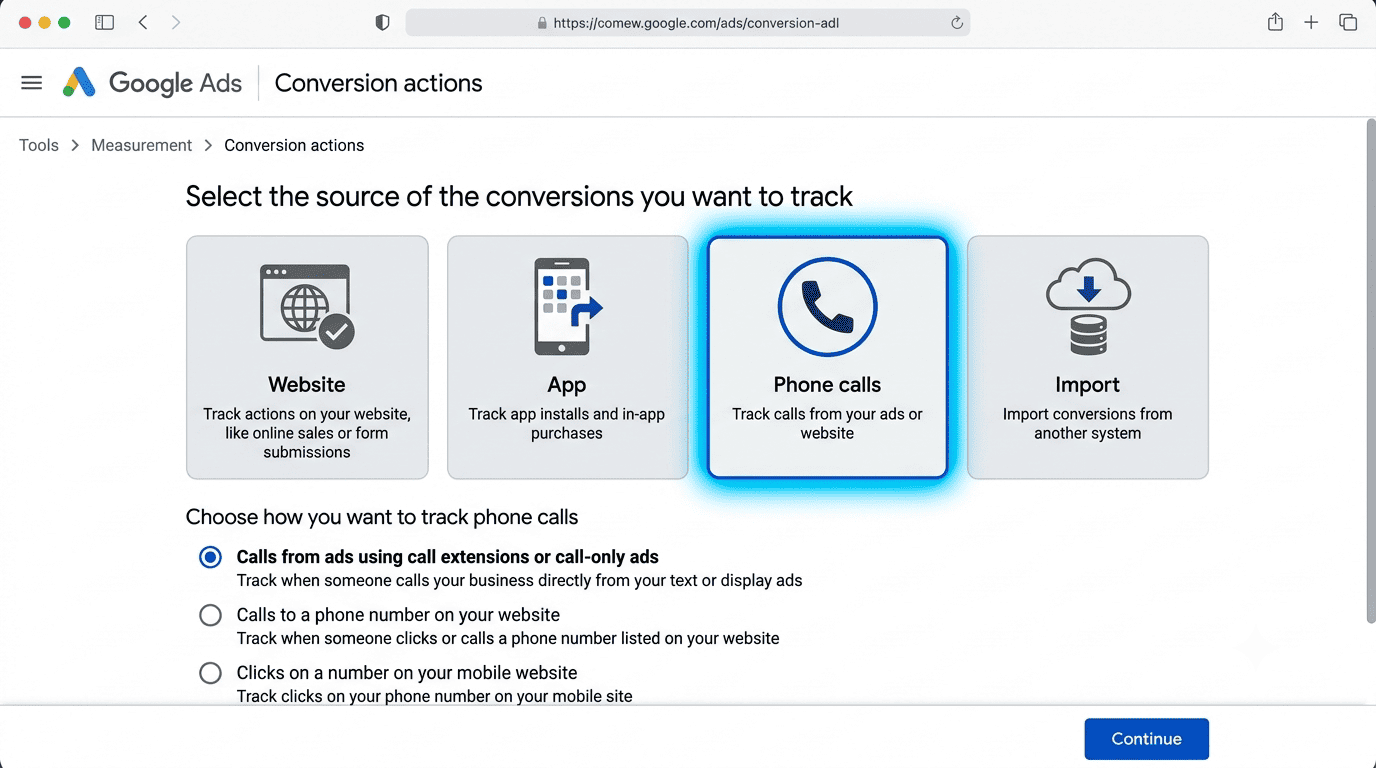
- Open Goals.
- Select Conversions.
- Click Summary.
- Select Create conversion action.
- Choose the phone call conversion source.
- Select Calls from ads or assets.
- Continue to the conversion settings.
Choose the relevant category, such as Phone call lead.
Step 2: Configure the call conversion settings
Enter a clear conversion name.
For example: Calls from Google Ads
Configure the following settings:
|
Setting |
Recommended configuration |
|
Conversion name |
Calls from Ads |
|
Category |
Phone call lead |
|
Call length |
60 seconds as an example |
|
Count |
One for typical lead generation |
|
Action optimisation |
Primary if it represents a genuine lead |
Set a minimum call duration to define when Google Ads records a phone call as a conversion.
For example, a 60-second setting means the call must last at least one minute to count as a conversion.
Choose a duration that matches your business needs. Short enquiries may need less time. Detailed consultations may require longer calls.
Step 3: Add a call asset to your Google Ads campaign
After creating the conversion action, add a call asset to your campaign.
Follow these steps:
- Open Campaigns in Google Ads.
- Select Assets.
- Click the plus button.
- Choose Call.
- Enter your business telephone number.
- Select the campaign or ad group where you want the call asset to appear.
- Save your changes.
Check that the telephone number is correct and includes the appropriate country code.
You can also schedule call assets around your business opening hours so customers are more likely to reach someone who can answer.
Step 4: Enable call reporting
- Sign in to your Google Ads account.
- Open Admin or Account settings.
- Find the Call reporting option.
- Turn on call reporting and save your changes.
When available, Google uses a Google forwarding number to track calls from your adverts. This number forwards the customer’s call to your business phone number. It also allows Google Ads to record call details, such as call duration and start time.
Step 5: Review your phone call conversions
After your adverts start generating calls, check your conversion data in Google Ads.
- Open Goals and select Conversions.
- Go to the Summary section.
- Find your Calls from ads conversion action.
- Review the available call reporting data.
You can check:
- Total calls: How many calls your adverts generated.
- Call duration: How long each call lasted.
- Call start time: When customers called your business.
- Campaign performance: Which campaigns generated phone enquiries.
- Qualified calls: How many calls met your minimum call duration.
Use this data to measure phone call conversions. It also helps you identify which Google Ads campaigns generate valuable leads.
Method B: Track Calls to a Google Forwarding Number on Your Website
This method tracks phone calls from visitors who click your Google Ads, visit your website and call your business.
For example:
- A person searches for an accountant on Google.
- They click your Google Ads and visit your website.
- They view your accounting services and decide to call.
- Google Ads records the eligible call as a conversion through website call conversion tracking.
This helps you track how many phone enquiries your Google Ads campaigns generate.
Step 1: Create a website phone call conversion action
Sign in to Google Ads.
- Open Goals.
- Select Conversions.
- Go to Summary.
- Click Create conversion action.
- Choose the phone call conversion option.
- Select Calls to a phone number on your website.
This tells Google Ads that you want to track calls made to a telephone number displayed on your website.
Step 2: Enter your business telephone number
Enter the exact telephone number displayed on your website.
For example: 020 1234 5678
Make sure the number matches the one shown on your website. Check every page where you want to track phone calls.
If different pages display different numbers, check the tracking requirements before setup.
Step 3: Configure the conversion settings
Give your conversion action a clear name, such as: Calls from Website
Set the minimum call duration. For example, choose 30 or 60 seconds. The right duration depends on the type of phone enquiries you receive.
Then review the conversion counting and action optimisation settings. These help Google Ads record and use your phone call conversions correctly.
Step 4: Install the Google tag
Google Ads needs the Google tag to identify eligible advertising interactions.
If your website already has the correct Google tag installed, check that it is working before adding anything new.
Otherwise, install the tag directly or through Google Tag Manager.
Step 5: Install the Google Ads phone call snippet
Google Ads provides a phone snippet during website call conversion setup. Install it by following Google's instructions.
You can also use Google Tag Manager (GTM) if the relevant website call conversion tag is available.
The snippet works with your Google tag. It replaces your normal phone number with a Google forwarding number for eligible visitors.
For example:
- Original number: 020 1234 5678
- Displayed number: Google forwarding number
- Call destination: Your business phone line
The customer can still call your business. Google Ads can also measure eligible calls and record them as conversions.
Step 6: Test the website call tracking
Use Google Tag Assistant to check your Google tag implementation.
Then test the website call tracking process.
Check that:
- The correct telephone number is identified.
- The phone snippet is installed correctly.
- The Google tag works.
- The forwarding number appears for eligible visitors.
- Calls reach your actual business number.
Remember that website call tracking does not mean every website visitor will see a Google forwarding number. Number replacement depends on eligibility and Google's supported tracking conditions.
Official Google guide: https://support.google.com/google-ads/answer/6100664
Method C: Track Mobile Click-to-Call Events
This method tracks when a mobile visitor clicks a phone number or call button on your website.
Many business websites use clickable phone numbers. These allow visitors to call without entering the number manually.
For example: tel:+442012345678
When a visitor taps this link, their phone opens the dialler. You can track this click using Google Tag Manager (GTM) and Google Analytics 4 (GA4).
This helps you measure click-to-call interactions from your website. However, it does not confirm that the visitor completed the phone call.
Step 1: Check your website telephone links
Open your website and find the telephone number. Check that it uses a clickable telephone link.
For example: Call us
This allows mobile visitors to tap the number.
Step 2: Create a click trigger in Google Tag Manager
Open Google Tag Manager.
- Go to Triggers.
- Click New.
- Select Click - Just Links.
- Choose to trigger on some link clicks.
- Add a condition for Click URL.
- Set the condition to start with tel:.
- Name the trigger Phone Number Click.
This tells GTM to listen for clicks on telephone links.
Step 3: Create a GA4 event tag
Open Tags and create a new Google Analytics: GA4 Event tag, using your existing Google tag configuration.
Set the event name to: phone_number_click
You can also include event parameters such as:
- phone_number
- page_location
- link_url
Avoid sending unnecessary personal information to GA4.
Step 4: Connect the trigger to the event tag
Under Triggering, select:
Phone Number Click
Save the tag.
Step 5: Preview and test the click event
Open GTM Preview mode. Visit your website using a mobile device or suitable mobile test environment. Tap the telephone number and check whether the event fires in Tag Assistant. You can also check the event in GA4 DebugView.
Important difference: Click-to-call tracking tracks a click on a telephone link. It does not confirm that the customer completed the call or spoke to your business.
If you want to track connected calls and call duration, use Google Ads website call conversion tracking or an appropriate call tracking provider.
Which Google Ads Call Tracking Method Should You Use?
The correct method depends on how customers contact your business.
|
Tracking method |
What it tracks |
Best use |
|
Calls from ads |
Eligible calls made directly from adverts |
Search campaigns with call assets |
|
Website call tracking |
Eligible calls made to a forwarding number on your website |
Visitors who call after visiting your website |
|
Mobile click-to-call |
Clicks on telephone links |
Measuring mobile website interactions |
|
Imported call conversions |
Eligible qualified calls or later outcomes |
Businesses using CRM or call tracking systems |
For most lead-generation businesses, it makes sense to track calls from adverts and eligible website calls separately.
You can also track mobile telephone link clicks as a secondary event to understand how visitors interact with your website.
How to Check Whether Google Ads Call and Form Tracking Is Working
After completing the setup, test every conversion action before using the data for campaign optimisation.
Use this checklist:
- Google tag is installed correctly.
- Google Tag Manager container is published.
- Form submission trigger works.
- Thank-you page conversion fires correctly.
- Failed form submissions are not counted.
- Google Ads call reporting is enabled.
- Call assets contain the correct telephone number.
- Website phone snippet is installed.
- Eligible forwarding number replacement works.
- Mobile telephone link clicks are recorded separately.
- No duplicate conversion tags are firing.
- Conversion actions have the correct Primary or Secondary settings.
You can use the following tools to check your implementation:
- Google Tag Assistant: Checks whether Google tags are working.
- Google Tag Manager Preview: Shows which tags and triggers fire during a website visit.
- Google Ads Conversion Diagnostics: Helps identify conversion tracking issues.
- GA4 DebugView: Helps check website events in real time.
Allow for reporting delays before concluding that a conversion is missing.
Conclusion
Accurate Google Ads conversion tracking helps you track real leads. Track successful form submissions, calls from ads and phone calls from your website. Use Google Tag Manager to manage tracking tags and events.
Use Google Analytics 4 to understand website visitor behaviour. You can also connect your CRM to Google Ads. This helps you track qualified leads, sales and customer enquiries.
Want to improve your Google Ads performance? Contact WOWinfotech today. Our digital marketing experts can help you set up conversion tracking, track valuable leads and make better use of your advertising budget.
Frequently Asked Questions
Contact us to get a digital strategy
Contact us for digital strategy guidance.